Your first label design
Open the label designs
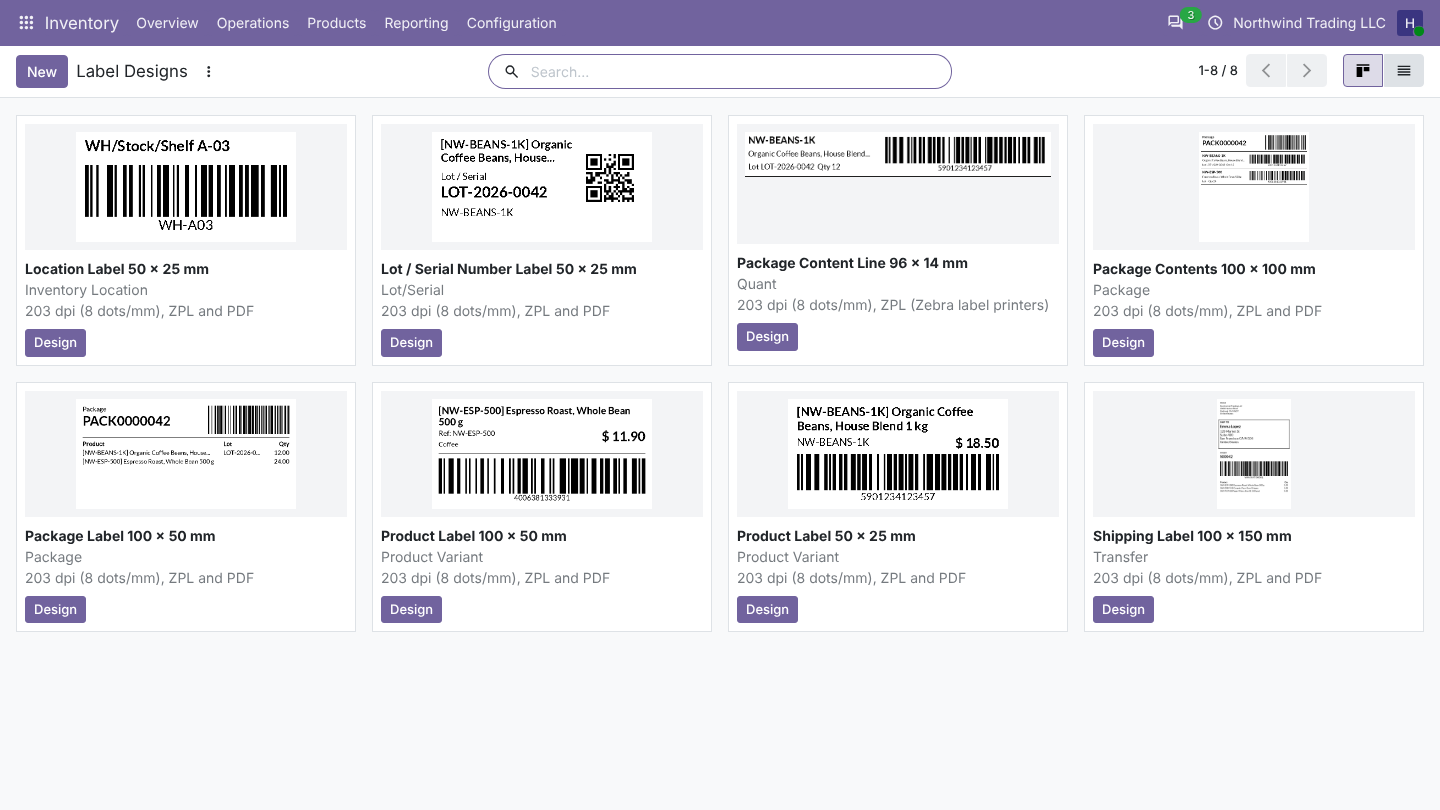
Go to Inventory > Configuration > Label Designs. Eight example designs are already there, each shown with a picture of the label (switch to the list view for a compact list). Open one to change it, click Duplicate on a design to start from a copy, or click New.
Only Inventory administrators can create and change designs; every internal user can print them.
Design settings
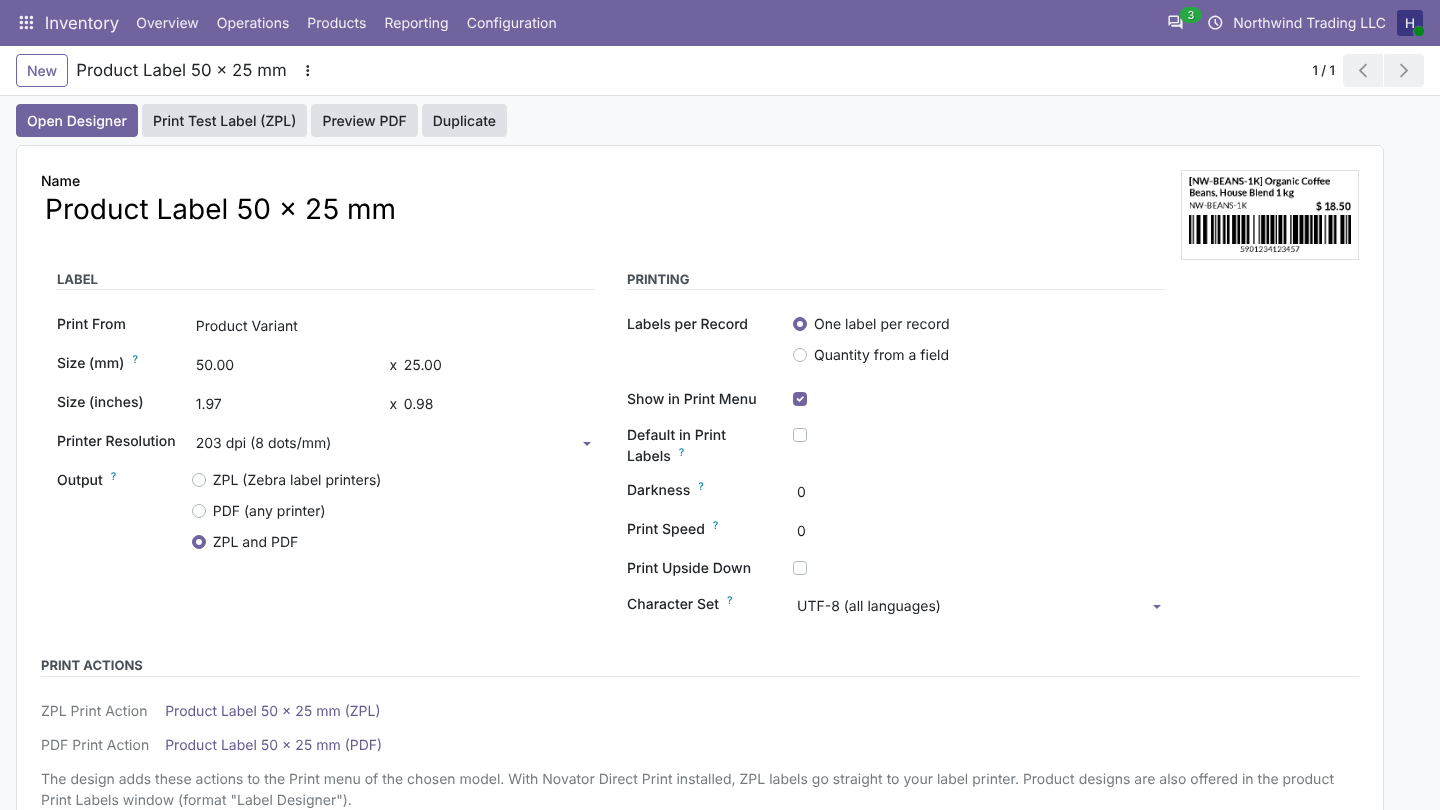
| Setting | What it does |
|---|---|
| Name | Shown in the Print menu, for example Product Label 50 x 25 mm (ZPL). |
| Print From | The model the label is for: Product Variant, Product, Lot/Serial, Packages, Inventory Locations, Transfer, Sales Order, Employee... any model. The field list in the designer follows this choice. |
| Size (mm) | Width and height of one label in millimetres, as printed on the roll (for example 50 x 25, 100 x 50, 100 x 150). |
| Size (inches) | The same size in inches: type 4 x 6 for a 4 x 6 in shipping label and the millimetres follow. |
| Printer Resolution | 203 dpi (8 dots/mm), 300 dpi (12 dots/mm) or 600 dpi (24 dots/mm). Use the resolution of your label printer: it is on the printer's label or configuration print-out. |
| Output | ZPL adds a ZPL print action, PDF a PDF print action, ZPL and PDF both. |
| Labels per Record | One label per record, or Quantity from a field: give a field path such as product_uom_qty and that many labels print for each record. |
| Show in Print Menu | Off: the design is not listed in the Print menu (it can still be used in Print Labels). |
| Default in Print Labels | For product and lot designs: Odoo's Print Labels window opens with this design already chosen. One default per model and company. |
| Darkness | ZPL only, 1 to 30. 0 keeps the darkness set on the printer. |
| Print Speed | ZPL only, inches per second. 0 keeps the printer setting. |
| Print Upside Down | ZPL only: rotates the whole label by 180 degrees, for printers that feed labels the other way. |
| Character Set | ZPL only. UTF-8 prints every language on current Zebra printers. Choose Windows-1252 or Code page 850 for older printers that print accents or symbols wrongly. |
| Company | Empty: every company can use the design. |
Saving the design refreshes its picture (drawn with the preview record) and creates or updates its print actions (see Print Actions at the bottom of the form). Changing the name, model, size, resolution or output updates them. Archiving or deleting the design removes them.
Open the designer
Click Open Designer. Add elements with the toolbar, choose a record under Preview with to see real values, and click Save. The designer page explains every control.
Test it
- Print Test Label (ZPL) downloads the ZPL of the preview record.
- Preview PDF opens the PDF of the preview record.
Both buttons are on the design form and in the designer toolbar.