Printing labels
From the Print menu
Each design adds its print actions to the Print menu of its model: Product Label 50 x 25 mm (ZPL) and Product Label 50 x 25 mm (PDF) on products, the lot label on lots and serial numbers, the shipping label on transfers. Select one or several records in a list, or open a record, and click Print.
- The ZPL action downloads a text file (
.txt) with the ZPL of all labels, ready to send to the printer. - The PDF action opens a PDF with one label per page, at the exact label size.
Turn Show in Print Menu off on a design to hide it there.
From Print Labels
Products, product variants and transfers have Odoo's Print Labels, a button or an action in the gear menu depending on the Odoo version. Choose the format Label Designer, then the Label Design and Print As ZPL or PDF.
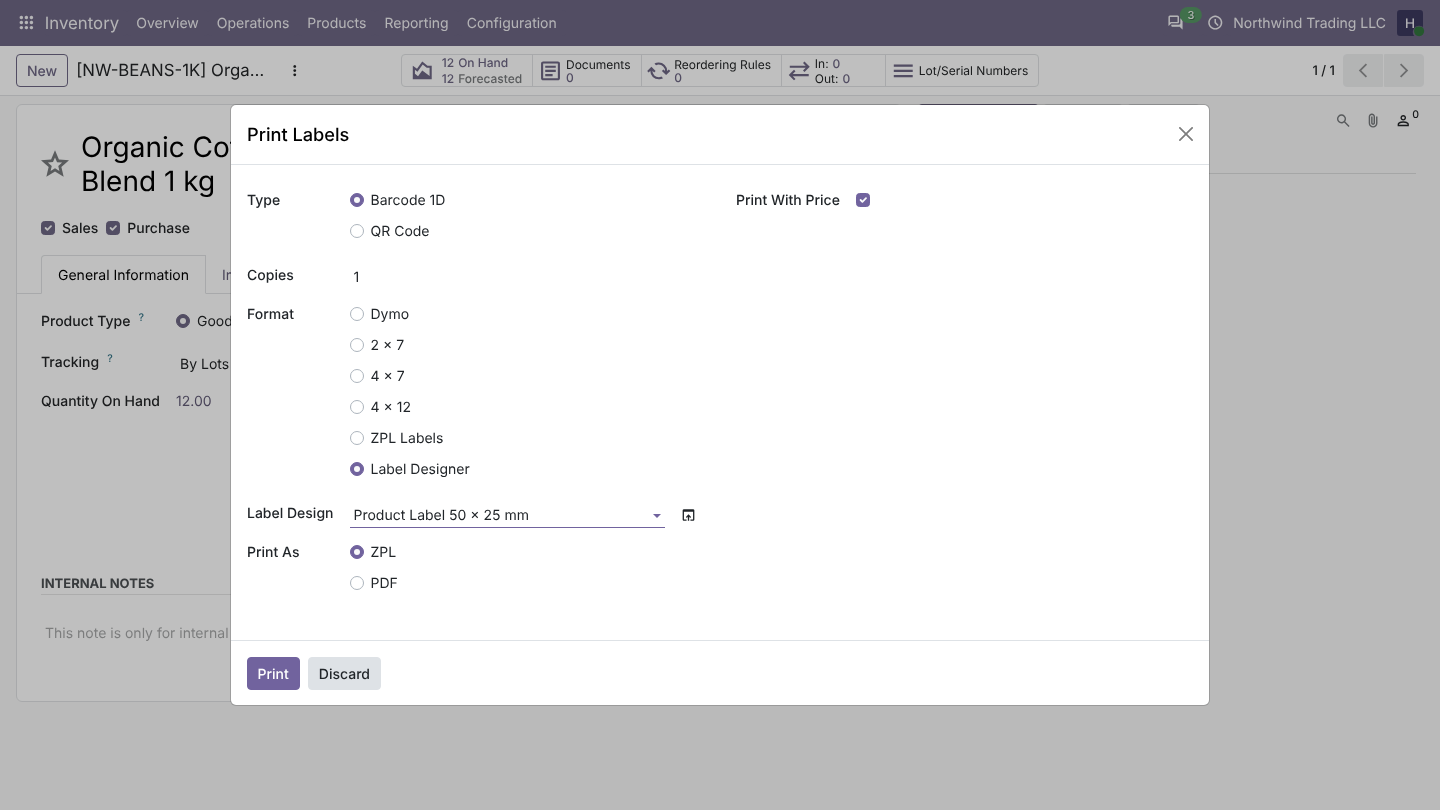
- Quantity prints that many labels of each product.
- From a transfer, Operation Quantities prints one label per unit of each line (rounded to whole labels), Custom the quantity you type.
Every design for Product Variant or Product is offered here. Tick Default in Print Labels on a design to have it chosen when the window opens.
Lot and serial number labels from a transfer
On a receipt or other transfer with lots or serial numbers, Print Labels offers lot labels. Choose Quantity to print (One per lot/SN or One per unit), the format Label Designer, a design for Lot/Serial and Print As ZPL or PDF. With One per unit, a lot of 12 units prints 12 labels; lots in other units of measure print one label each, like Odoo's own lot labels.
Work orders (Odoo Enterprise)
Work order labels are in the Enterprise edition of the app (novator_label_designer_mrp, $149 in total, or $50 if you already own the Community edition). It needs Odoo Enterprise with Manufacturing work orders (mrp_workorder) and installs the Community edition with it. A Print Labels step of a work order can then print one of your designs:
- Open the step: Manufacturing > Configuration > Quality Control Points, or the operation's steps.
- With the step type Print Label (on Odoo 20.0: Print Product Label or Print Lot/SN Label), choose a Label Design.
- A product design prints the produced product, a lot design the produced lot or serial number.
The operator clicks Print Labels in the work order as usual. The number of labels is the quantity being produced (lots on Odoo 20.0: one per lot or one per unit, as set on the step). The step's format (PDF or ZPL) chooses which print action of the design is used. Without a design, the step prints Odoo's standard label.
How many labels
| Where you print | Labels per record |
|---|---|
| Print menu, One label per record | 1 |
| Print menu, Quantity from a field | The value of that field, for example product_uom_qty on stock moves or quantity on quants. 0 skips the record. |
| Print Labels for products | The quantity chosen in the window, or the operation quantities |
| Print Labels for lots | One per lot/serial number, or one per unit |
Sending ZPL to the printer
The downloaded file is plain ZPL text that the printer understands directly. Ways to print it:
- Direct Print: our Direct Print app sends ZPL and PDF labels straight to the Zebra or office printer, with no download. Rules can send each design to its own printer.
- Odoo IoT Box (Odoo Enterprise): link the ZPL print action to your label printer like Odoo's own ZPL labels.
- Zebra Setup Utilities on Windows: Open communication with printer, then send the file.
- Network printer: send the file to port 9100, for example
nc 192.168.1.50 9100 < labels.txton Mac or Linux. - USB printer on Windows: share the printer, then
copy /b labels.txt \\localhost\ZebraSharein a command prompt.
PDF labels
Print the PDF at actual size (100 %, no Fit to page) on the label size set in the printer driver. Label printers without ZPL, laser printers with label sheets cut to size, and office printers for tests all work.