KPRA POS Integration (Khyber Pakhtunkhwa, Pakistan)
Odoo KPRA POS Integration (novator_pos_kpra) reports every Point of Sale bill of a service business in Khyber Pakhtunkhwa, Pakistan (restaurants, cafes, caterers, hotels and other services) to the Khyber Pakhtunkhwa Revenue Authority through KPRA RIMS. The bill prints with the KPRA number, the QR code that opens KPRA's verification page, and the tax shown as KPST. Refunds go to KPRA as credit notes against the original bill.
It runs on the same Pakistan Tax engine as the FBR, PRA and SRB apps, so everything in Set up, Selling and follow-up and Receipts applies: one try per bill, the till keeps going when KPRA is down, Submit to KPRA from the order list, the locked log, receipt PDFs, email and WhatsApp. Odoo talks to KPRA RIMS directly over HTTPS: KPRA's Windows utility is not needed.
Odoo 13.0 - 20.0 Community and Enterprise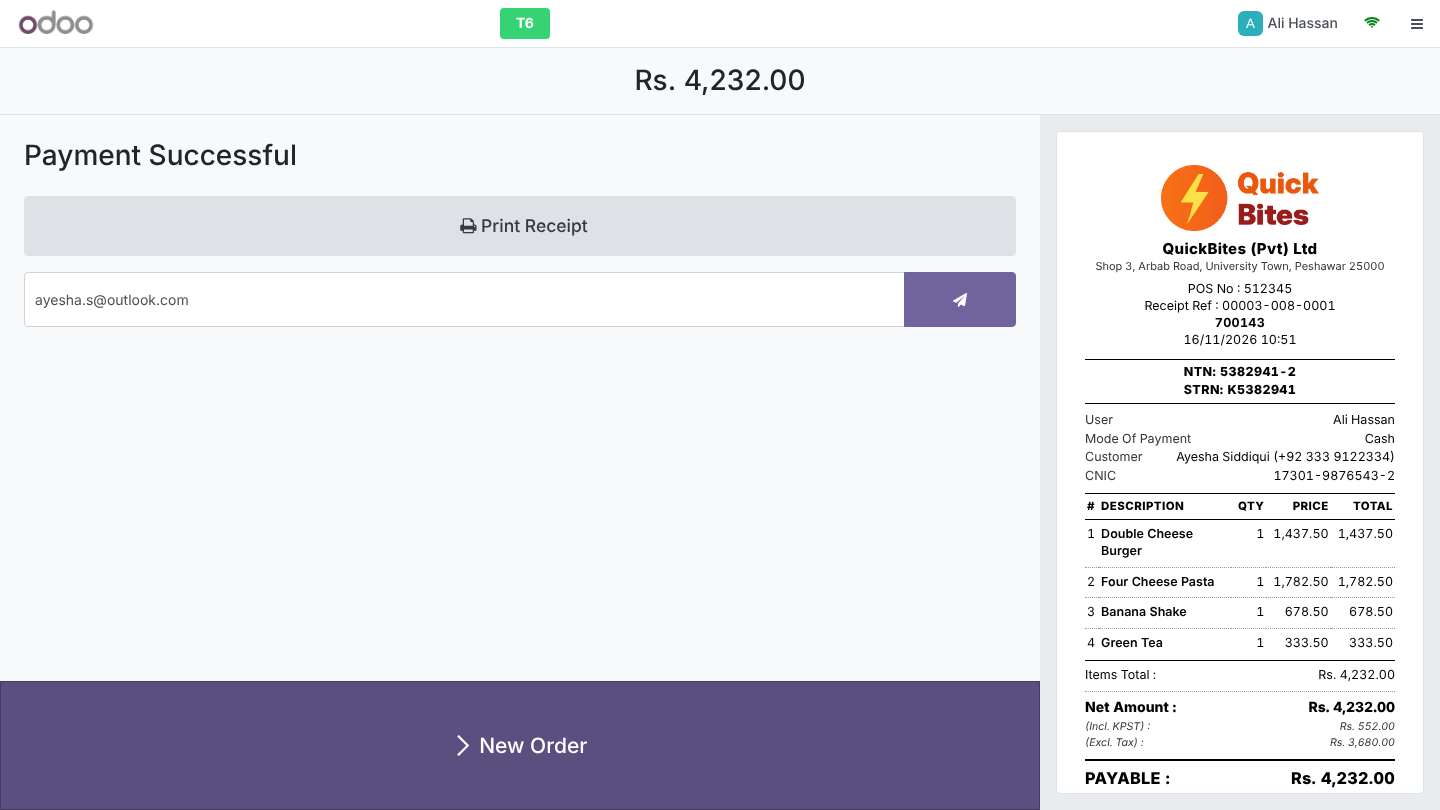
- Odoo KPRA POS Integration on the Apps Store ($99 with the engine; $50 if you already have the FBR, PRA or SRB app)
Set up
- Register each branch with KPRA (RIMS) and note its POS ID, NTN and key.
- Go to Invoicing → Configuration → Journals, open the journal your POS invoices with, tab Pakistan Tax.
- Tax Authority: KPRA (Khyber Pakhtunkhwa Revenue Authority).
- Under Sale Points, add each till with its POS ID, the NTN in Username / NTN and the key in Token / Password, then click Test. Only tax managers see the NTN and key, and the key is never stored in the logged requests.
- In Point of Sale → Configuration → Settings, pick the till's Sale Point under Tax Authority Reporting.
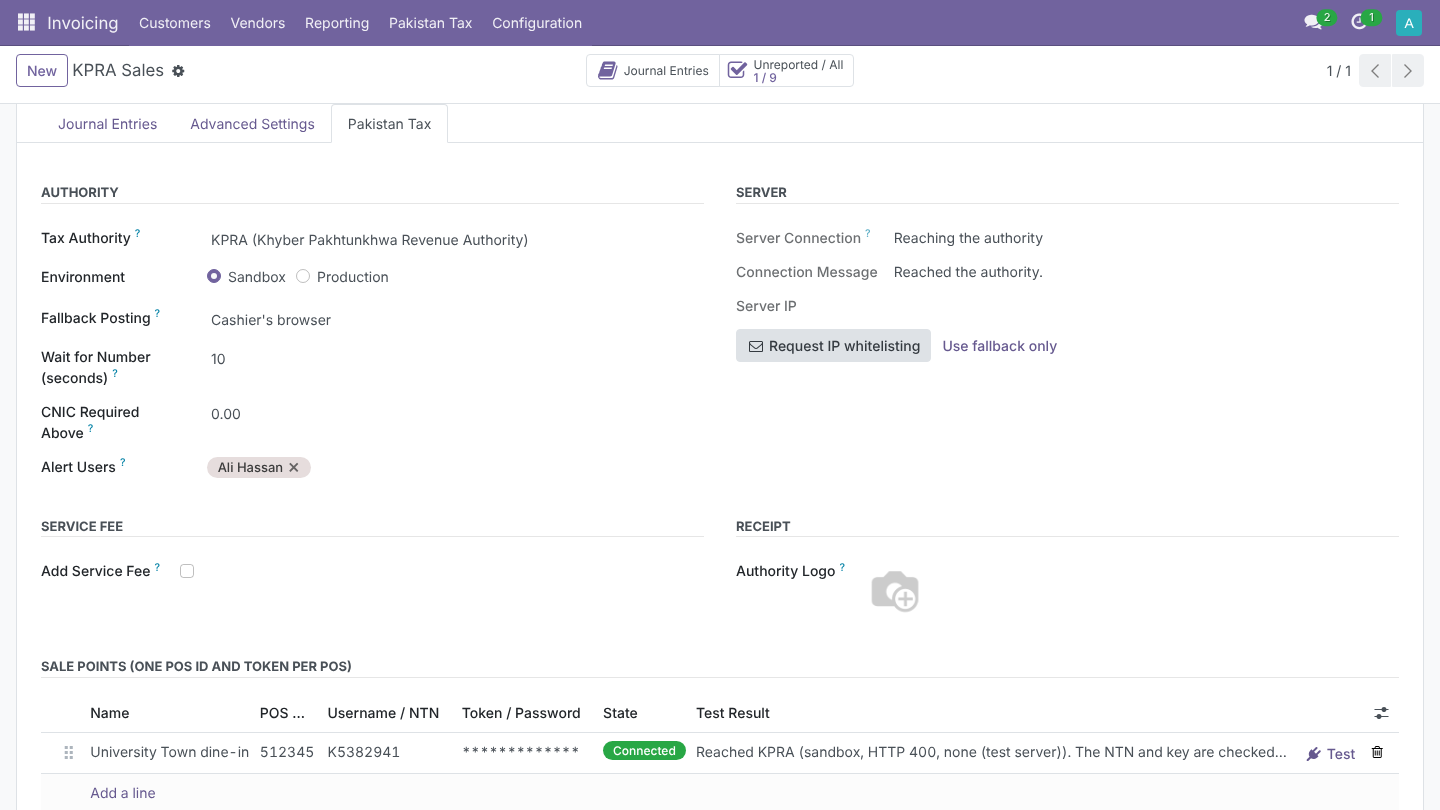
KPRA has no separate test server: bills go to KPRA RIMS as they are. Sell your first test bills with the test credentials from KPRA's API test page, then enter your own POS ID, NTN and key and switch the journal to Production.
KPRA takes totals only, one bill per call: the Odoo receipt number (invoice number, unique per POS ID), the value before tax, the tax rate, KPST, the bill total, date and time, and cash (1) or card (2).
Refunds as credit notes
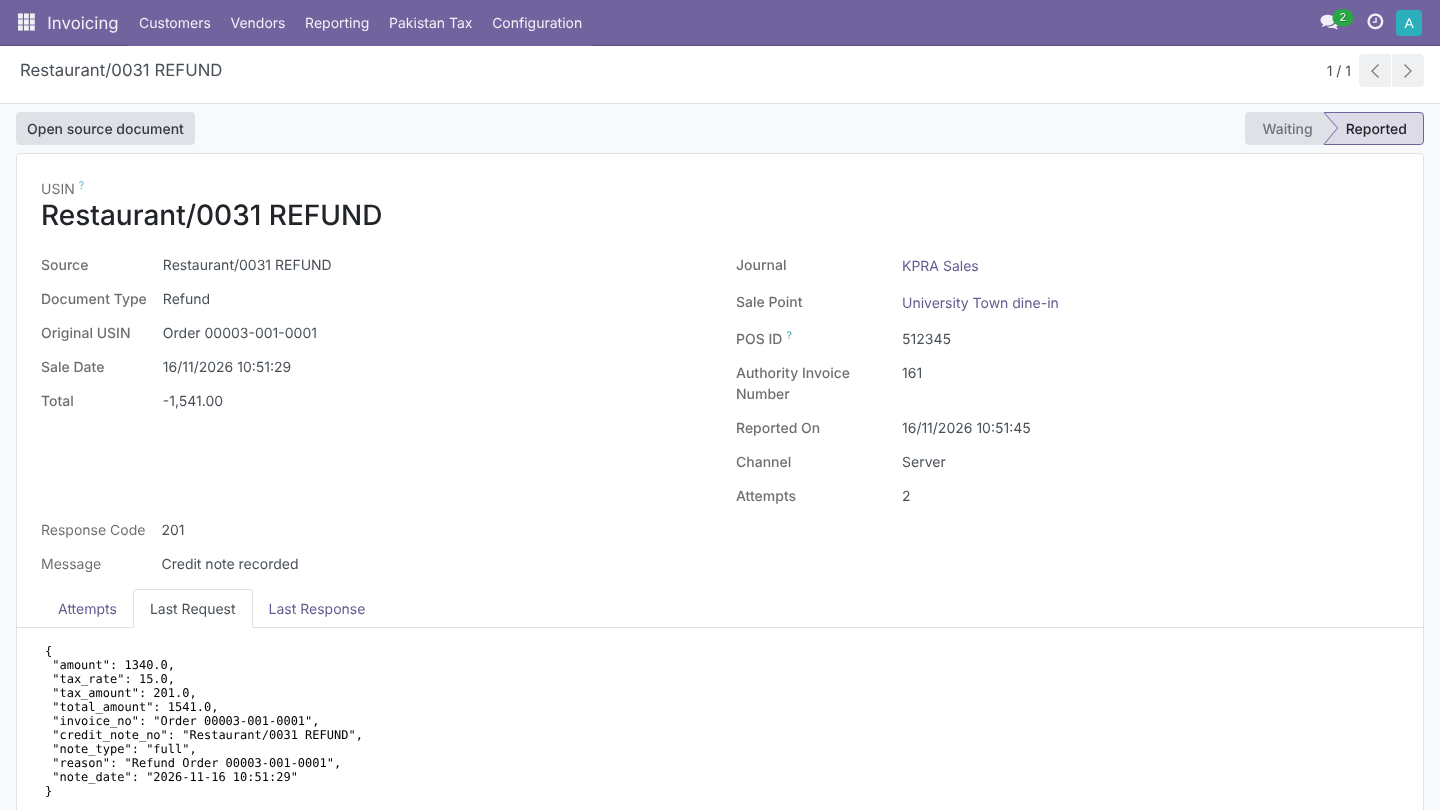
Refund a bill in Odoo and the app sends a KPRA credit note: the original invoice number, the refund number as the credit note number, full or partial (worked out from the original bill), the reason and the amounts. A credit note KPRA already has is recognised and never doubled. The original bill must have reached KPRA first; if it did not, the refund shows a plain message: report the original, then submit the refund again.
The bill
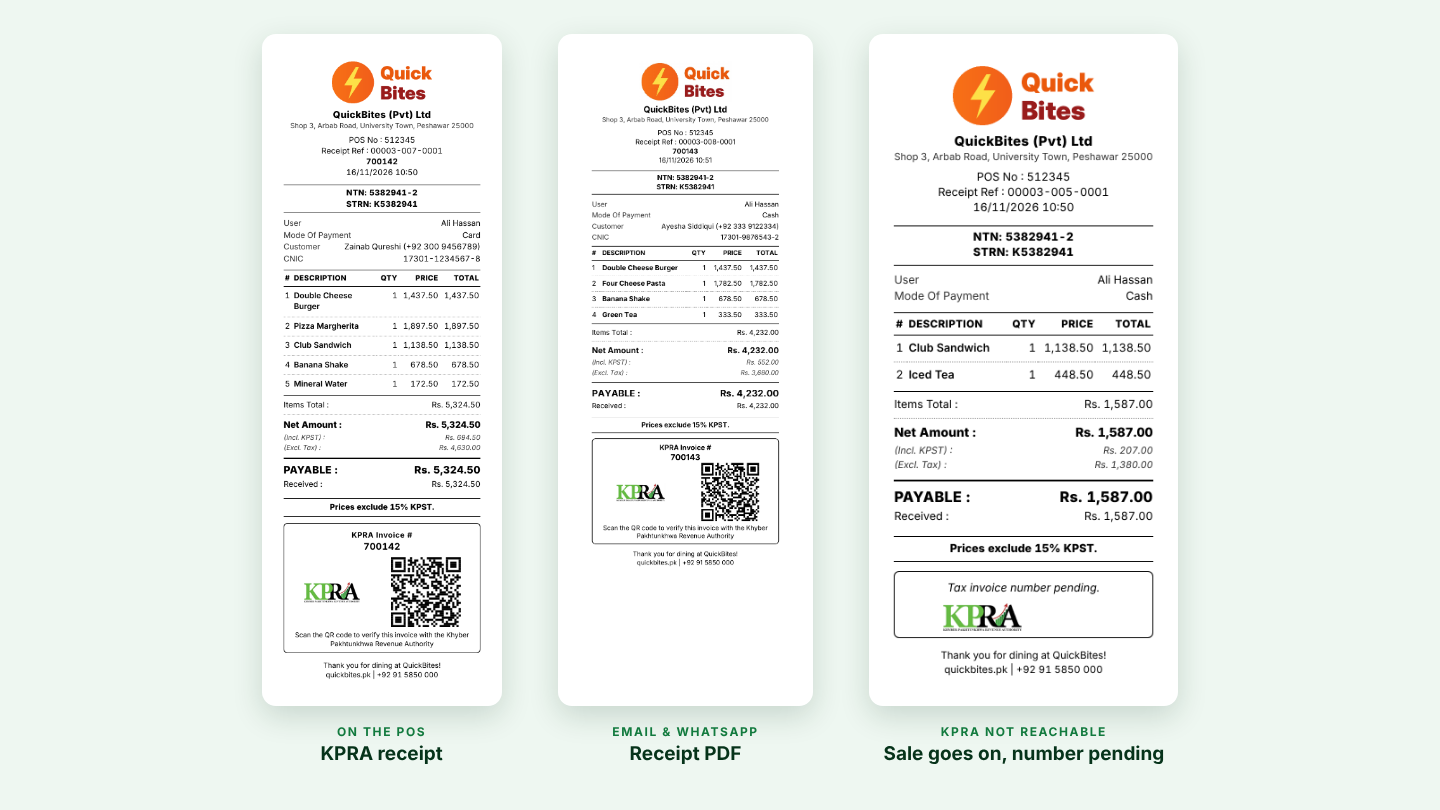
- (Incl. KPST) and (Excl. Tax) under the Net Amount.
- KPRA Invoice # with KPRA's transaction number, the KPRA logo and the verification QR code (POS ID and invoice number), with the line "Scan the QR code to verify this invoice with the Khyber Pakhtunkhwa Revenue Authority".
Card rate
If your rate is lower when customers pay by card, give the card payment method its Reduced Tax Rate and the till applies it when the whole bill is paid by card: see The card rate on the SRB page. Turn off Tax Rate by Payment in a till's settings to charge the full rate.
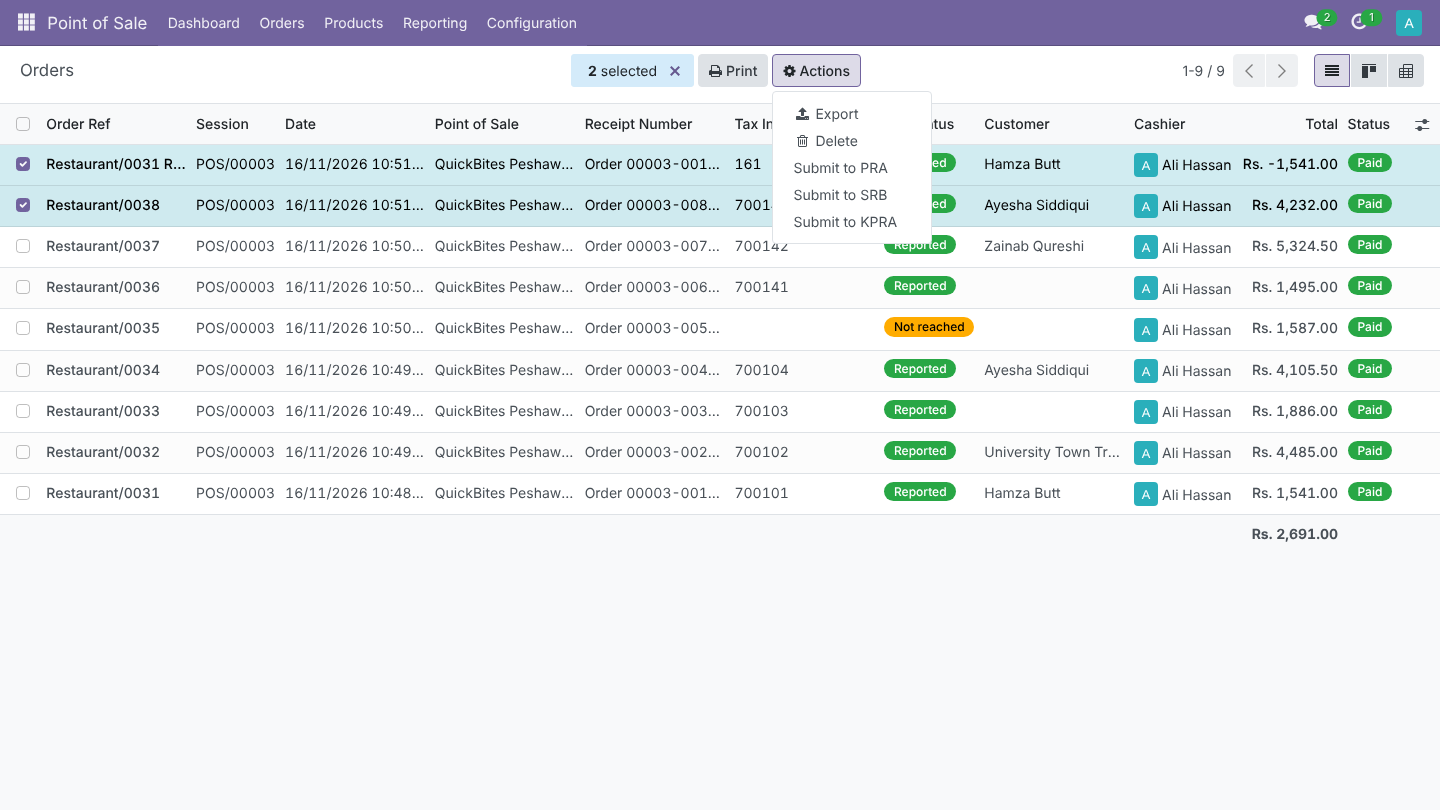
Submit to KPRA
Point of Sale → Orders → Orders, select the bills without a KPRA number, Actions → Submit to KPRA.