Set up FBR POS Integration
You set up FBR once on the sales journal your Point of Sale invoices with, then give every till its own sale point (FBR POS ID and token). Start in Sandbox, then switch to Production.
Who can do what
The app adds two groups under Settings → Users → Pakistan Tax:
- User: view reported sales: sees Reported Sales and the tax status of orders.
- Manager: setup, token, retries: sets up journals and sale points, sees tokens, submits sales again. The administrator gets it on install.
Cashiers need no extra group: the POS reports the sale for them.
Before you start
- Register your business for FBR POS invoicing and register each till in IRIS. For every till you get a POS ID and an access token.
- Your company currency is PKR (the app refuses Production in another currency).
- Open your company (Settings → Companies) and fill in NTN and STRN. They print on every receipt.
- Optional: give products their PCT / HS Code (product form, next to Product Category). It is sent to FBR with each item.
1. The FBR journal
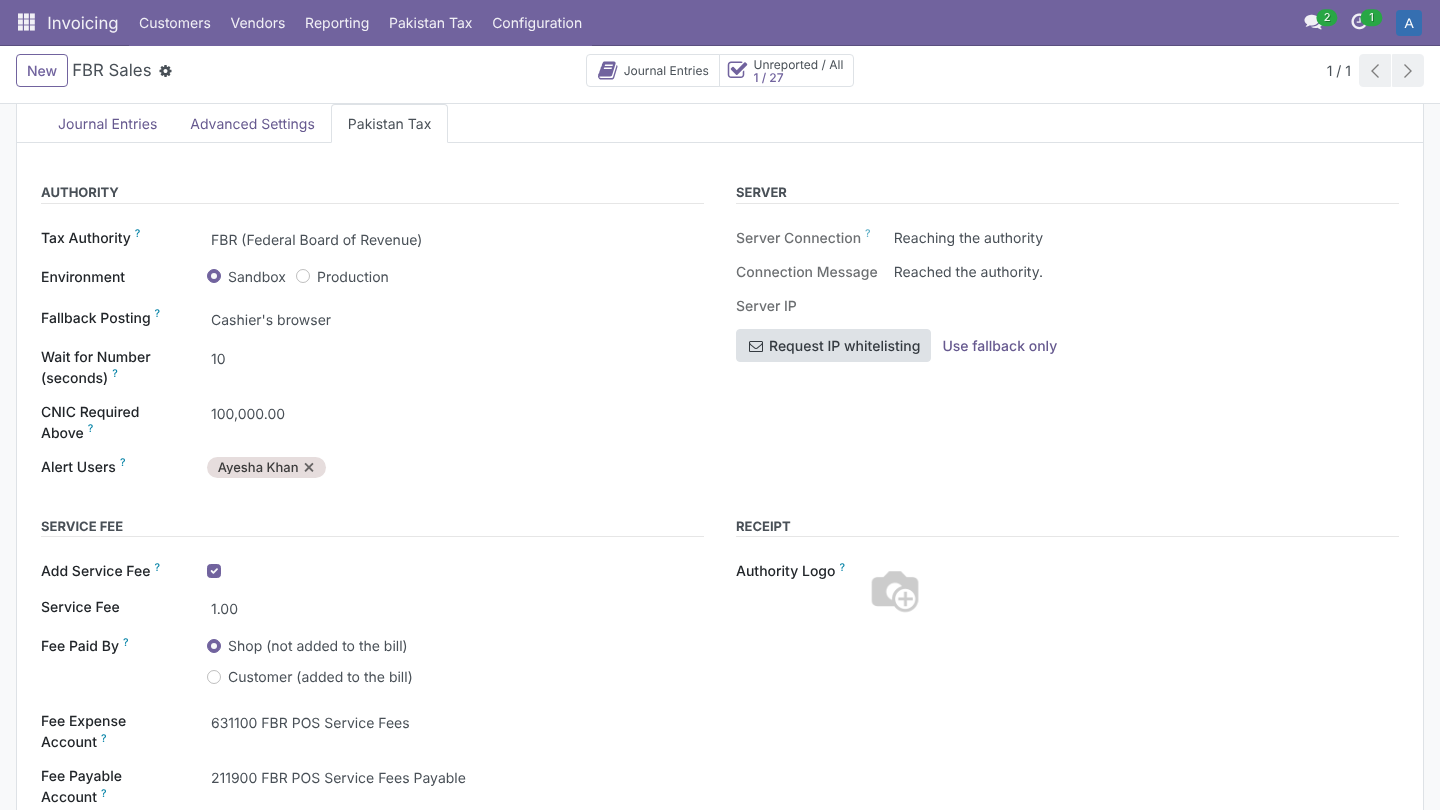
- Go to Invoicing → Configuration → Journals and open the sales journal your Point of Sale uses for invoices (in the POS settings: Default Journals → Invoices).
- Open the Pakistan Tax tab.
- Tax Authority: FBR (Federal Board of Revenue). Environment: Sandbox first.
- Fallback Posting: Cashier's browser (recommended) or Off. See When FBR is down.
- Wait for Number (seconds): how long the till waits for the FBR number, 10 by default (3 to 60).
- CNIC Required Above: sales above this total need the buyer's CNIC or NTN. 0 means no limit.
- Alert Users: who gets a To-Do when a sale stays without an FBR number. Empty means the Pakistan Tax managers.
2. Sale points (one per till)
- On the same tab, under Sale Points (one POS ID and token per POS), add a line per till: a name (for example "Dolmen Mall till"), the POS ID and the Access Token from IRIS. You can also use Invoicing → Pakistan Tax → Sale Points.
- Click Test on the line. A green result means FBR answered.
The test sends a sample request to FBR with the POS ID and token. Real sales send the receipt data FBR asks for: invoice number in Odoo (USIN), date, buyer CNIC, NTN, name and phone when known, totals, tax, discount, payment mode and the items (code, name, PCT code, quantity, tax rate and amounts). Nothing else leaves your database.
3. The Point of Sale
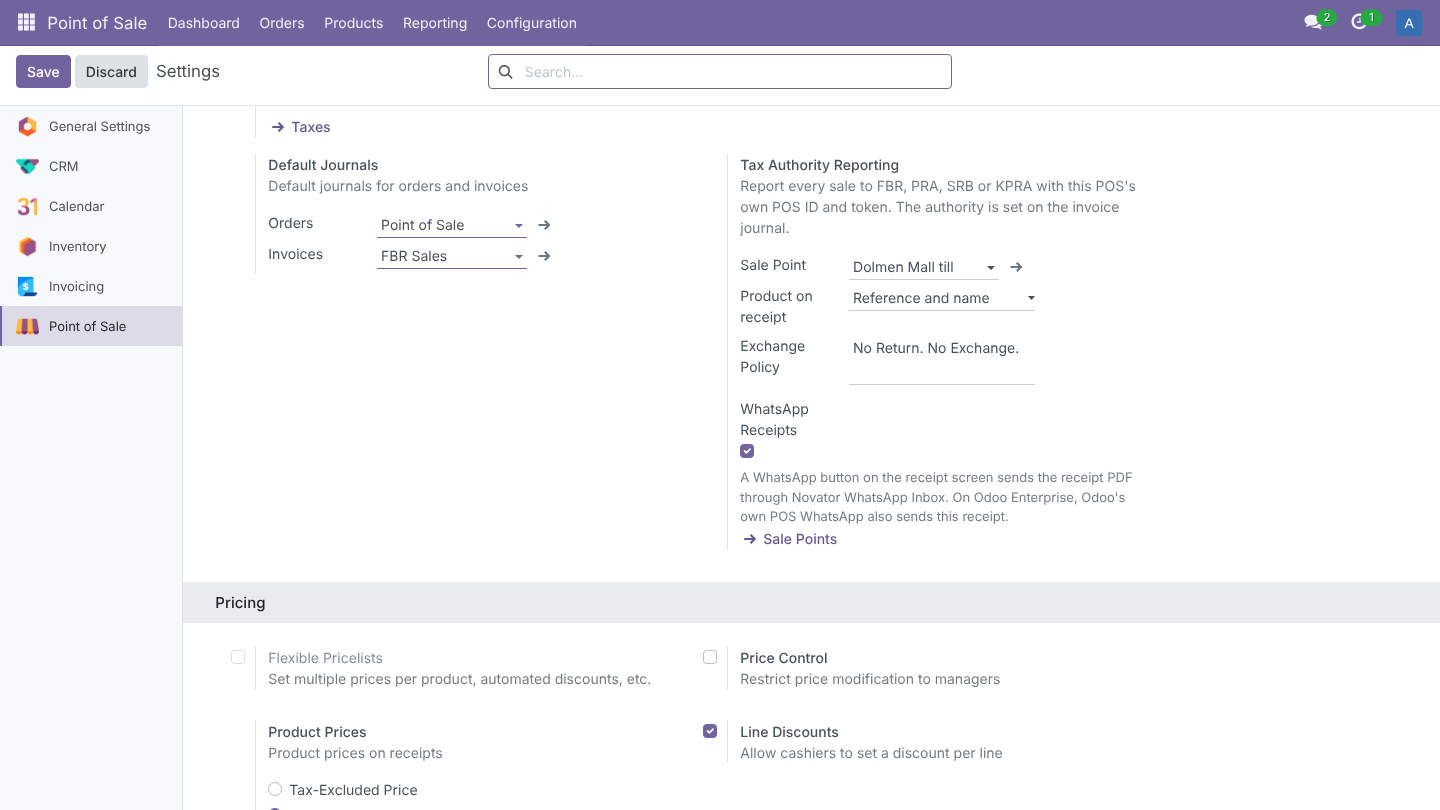
- Go to Point of Sale → Configuration → Settings and pick your till.
- In Tax Authority Reporting, choose its Sale Point.
- Product on receipt: product name, internal reference, or both.
- Exchange Policy: for example "No Return. No Exchange." It prints just before the FBR number.
- WhatsApp Receipts (Odoo 17.0 and later): see Receipts.
- Bills & Receipts → Footer: your thank-you line, printed at the very end of the receipt.
4. The Re 1 service fee
FBR charges a service fee per POS invoice. On the journal, Service Fee:
- Tick Add Service Fee and keep Service Fee at 1.00.
- Fee Paid By:
- Shop (not added to the bill): the bill stays the same and the receipt shows "Service Fee : 1.00" in the totals. Once a day the app books one journal entry for the fees of reported sales: set the Fee Expense Account (for example FBR POS Service Cost) and the Fee Payable Account (the fees you owe).
- Customer (added to the bill): the fee is added to the bill through the Service Fee Product, shown in the totals and never as an item line. The product carries no sales tax and is not reported as an item.
5. IP whitelisting and Production
FBR's Production gateway only answers servers it has whitelisted.
- On the journal, click Request IP whitelisting. The app fills in your server's IP, your NTN and the POS IDs; enter FBR's support address, check the text and click Send.
- When FBR confirms, set Environment to Production and test the sale points again.
If your server's IP changes (Odoo.sh can move servers), the journal shows a warning with the new IP: request whitelisting again, then click Dismiss.
Make your first sales in Sandbox and check Invoicing → Pakistan Tax → Reported Sales before you switch to Production.