Checkout and upsells
The order form
The customer fills in name, email, phone, company and address, picks the offer and can tick the order bump. The total updates at once.
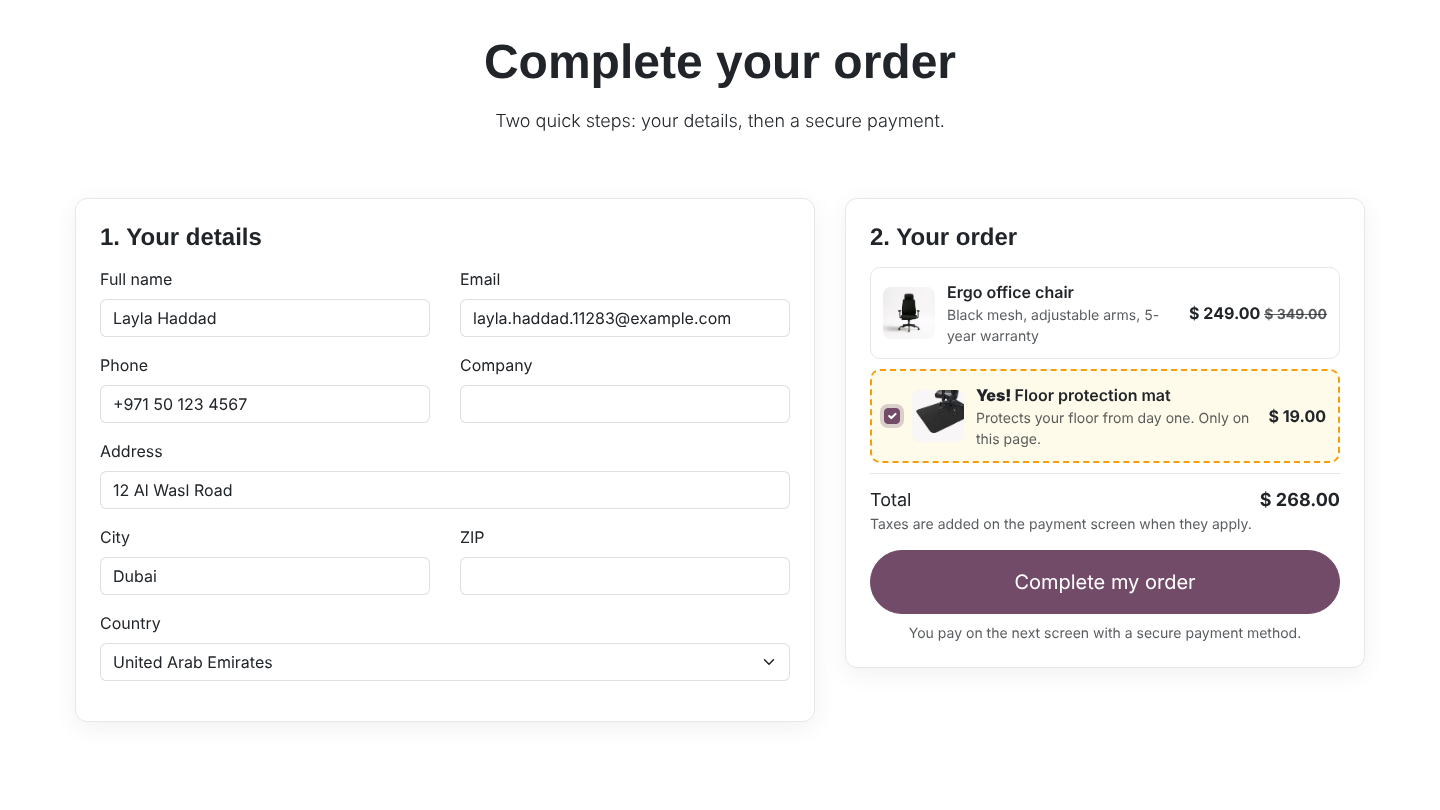
Complete my order creates the contact (or uses the existing contact with that email) and a quotation with the offers, then opens the payment step. An existing contact is never overwritten from the form: empty fields are filled in, and a different address becomes a delivery address of the contact.
Payment
The customer pays on Odoo's own secure payment form with the providers you enabled. Ticking Save my payment details saves the card for the upsell.
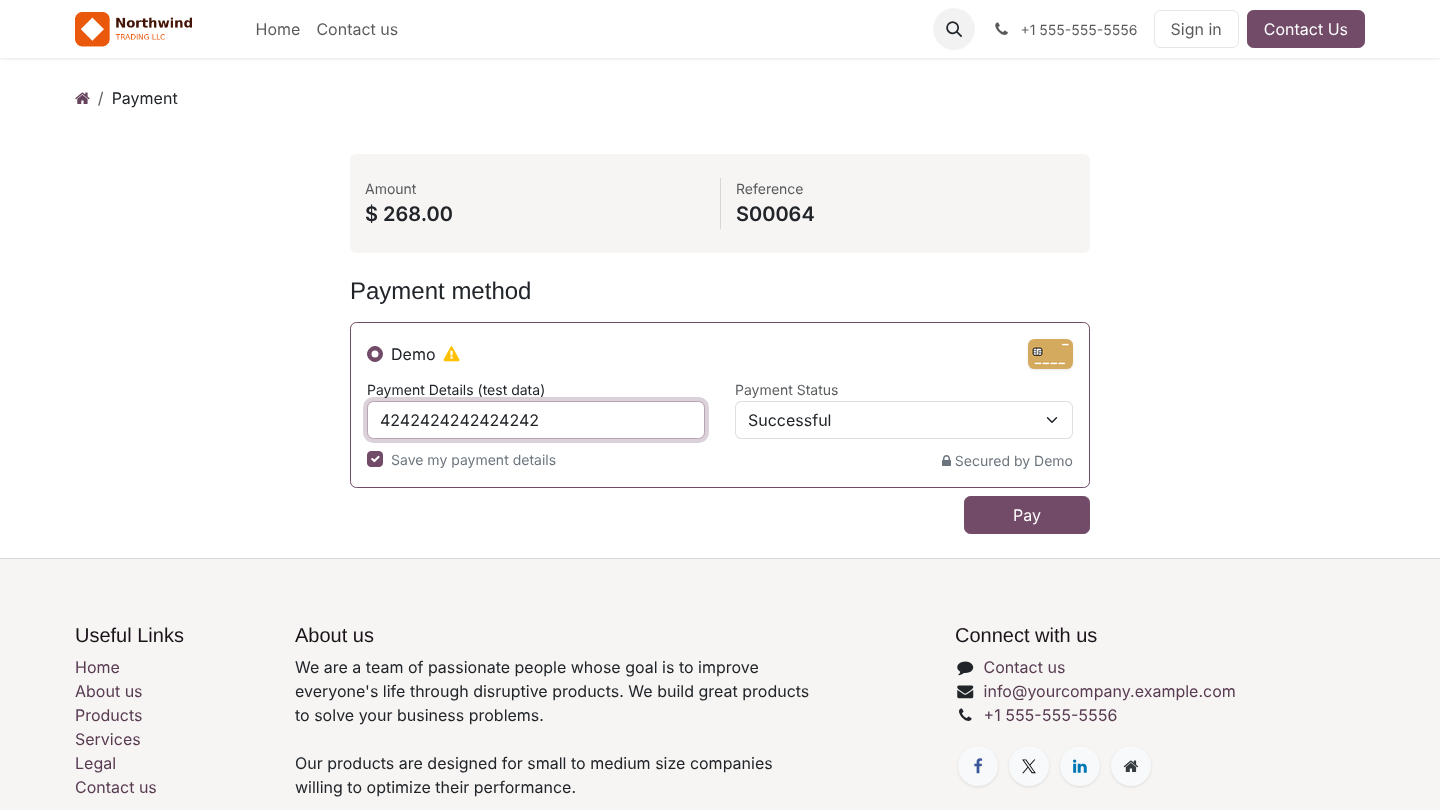
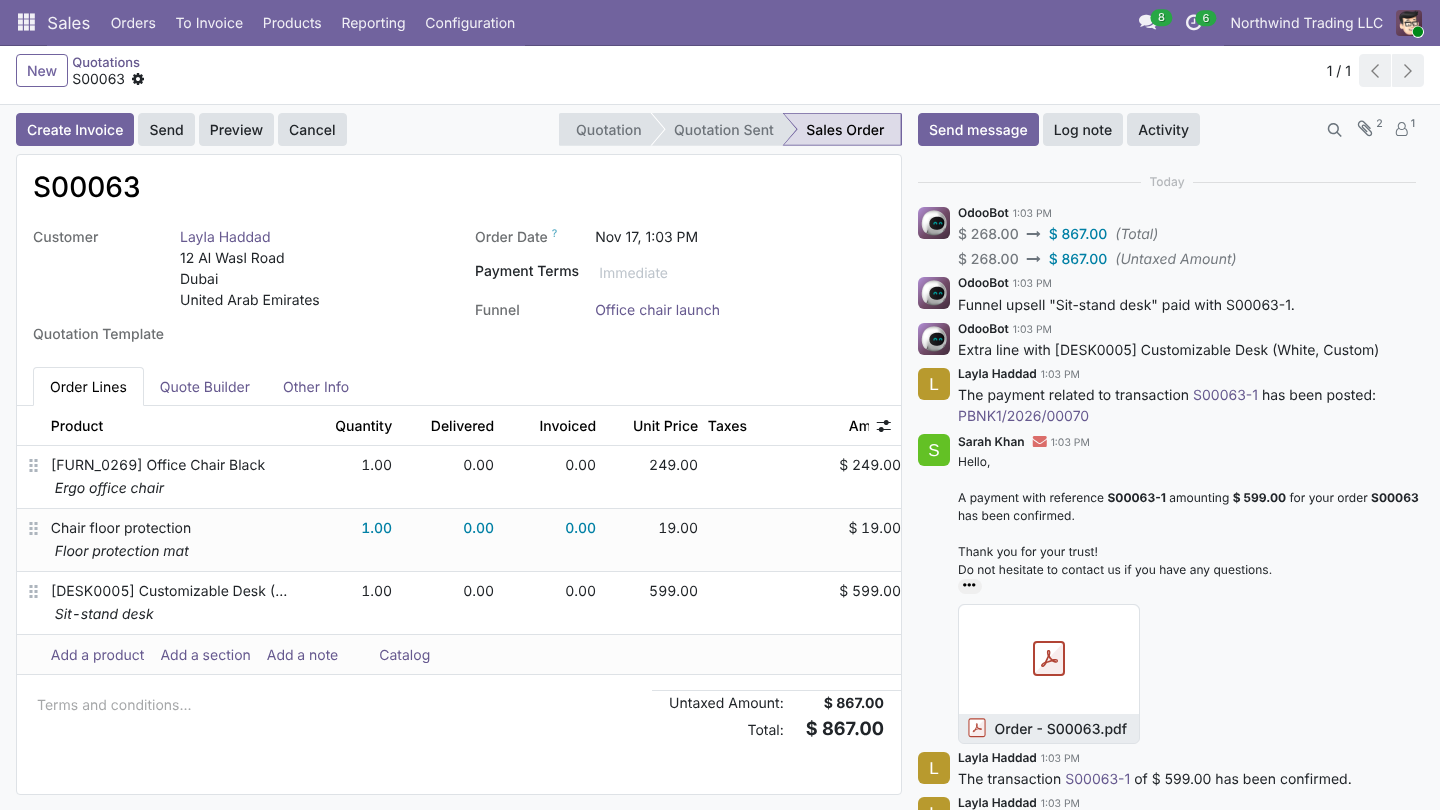
The payment confirms the quotation as a sales order. Your Odoo settings then apply as usual: automatic invoicing, delivery, confirmation email. The sales order shows the Funnel it came from.
One-click upsell and downsell
Right after the payment the customer sees the upsell.
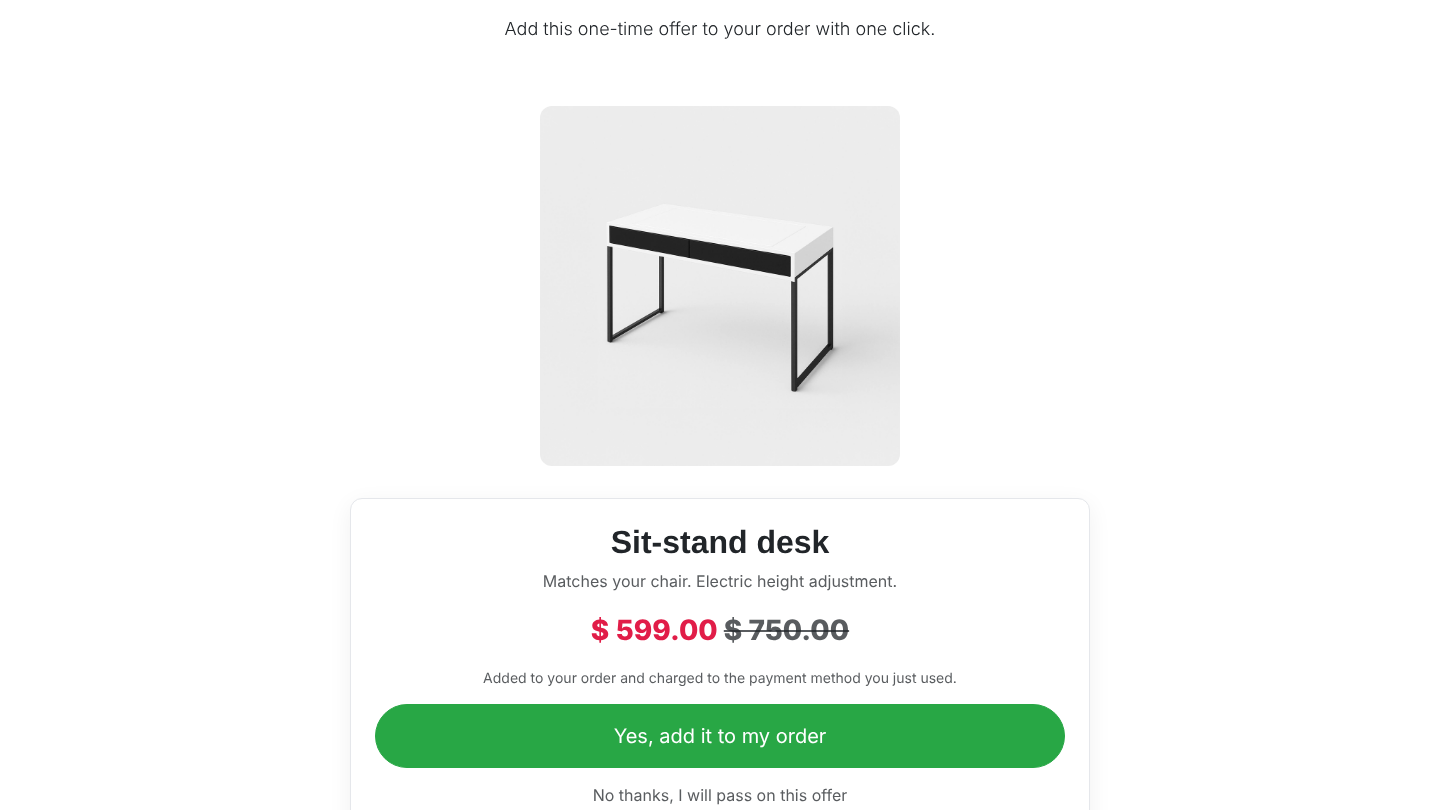
- With a saved card: "Yes, add it to my order" charges the saved card and adds the offer. No second form.
- Without a saved card (the customer did not tick the box, or the provider cannot save cards): a short payment step for the upsell amount.
- No thanks leads to the downsell (or the next step).
Where the upsell goes:
- Same order while it is not invoiced yet: the line is added after the payment, with a note in the order's chatter.
- Add-on order when automatic invoicing is on or the first order is invoiced: a new order linked to the first one (Add-on to), confirmed by its own payment, so every invoice matches its payment.
Thank you page
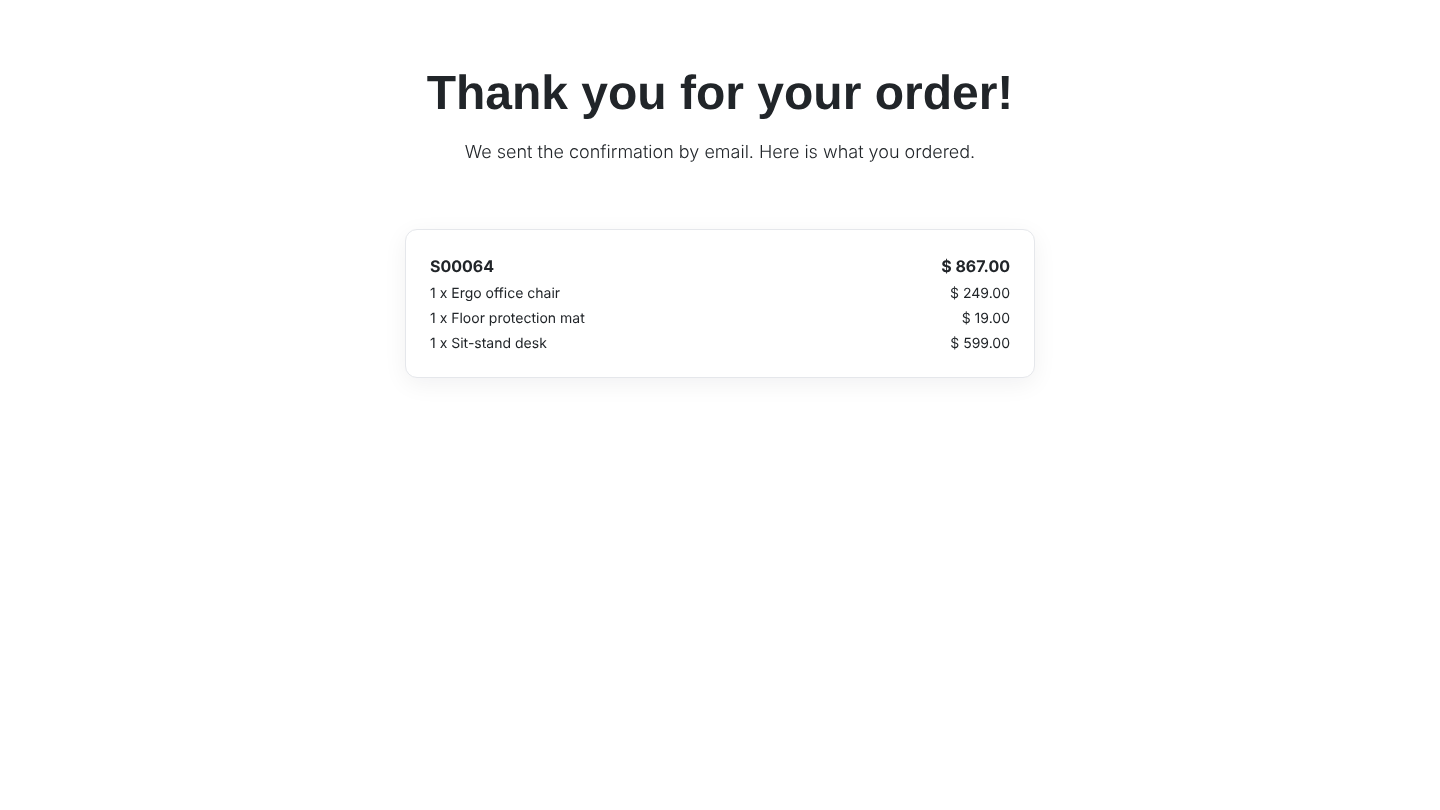
The thank you page shows every order of the visit with its lines and total.