Manager PINs
A manager types a PIN in the POS to approve:
- items outside their return window, or not returnable,
- returns without receipt,
- a refund on a payment method outside the refund policy,
- a cash refund above the cash limit.
The app does not need the Employees app or POS employee login.
Set a PIN
- Go to Point of Sale → Configuration → Return Approvers (PIN) (or Set manager PINs in the settings).
- On the manager's line, click Set PIN.
- Type the New PIN (4 to 8 digits) twice and click Save PIN.
| Column / button | What it does |
|---|---|
| PIN Set | Ticked when the user has a PIN. |
| Set PIN | Sets or changes the PIN. Two approvers cannot share a PIN. |
| Remove PIN | Removes the PIN. The user can no longer approve. |
PINs are stored encrypted. Point of Sale administrators can set PINs for others; other users only for themselves.
Who can approve? The users listed in Return Approvers in the settings of the Point of Sale. When the list is empty, every Point of Sale administrator of the company who has a PIN.
In the POS
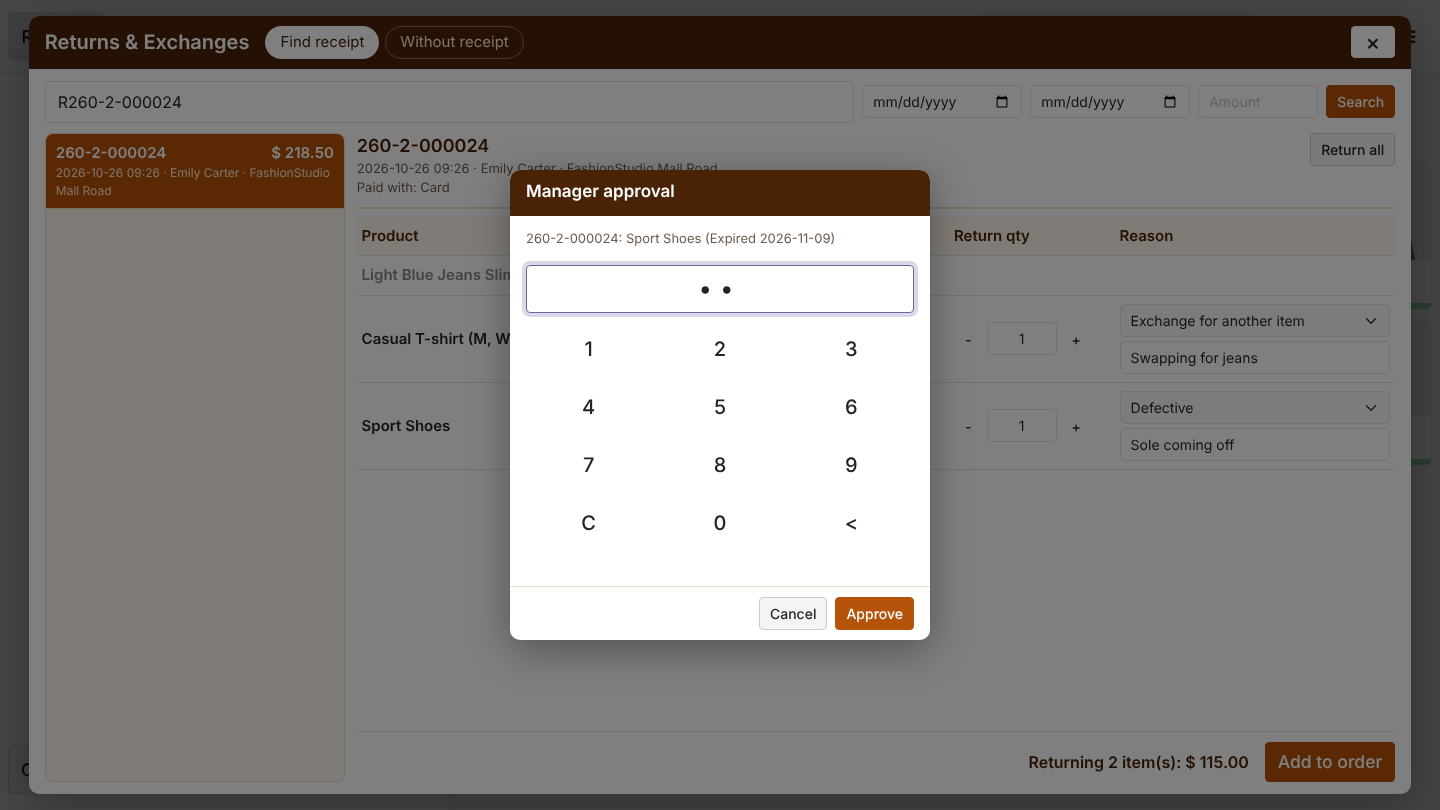
The PIN pad shows what is being approved. The manager types the PIN (keyboard or pad) and clicks Approve. After 5 wrong PINs in 5 minutes, PIN entry is locked on that Point of Sale for 5 minutes. A PIN needs a connection to the server.
The approval log
Point of Sale → Returns → Manager Approvals lists every PIN typed, including wrong ones (in red).
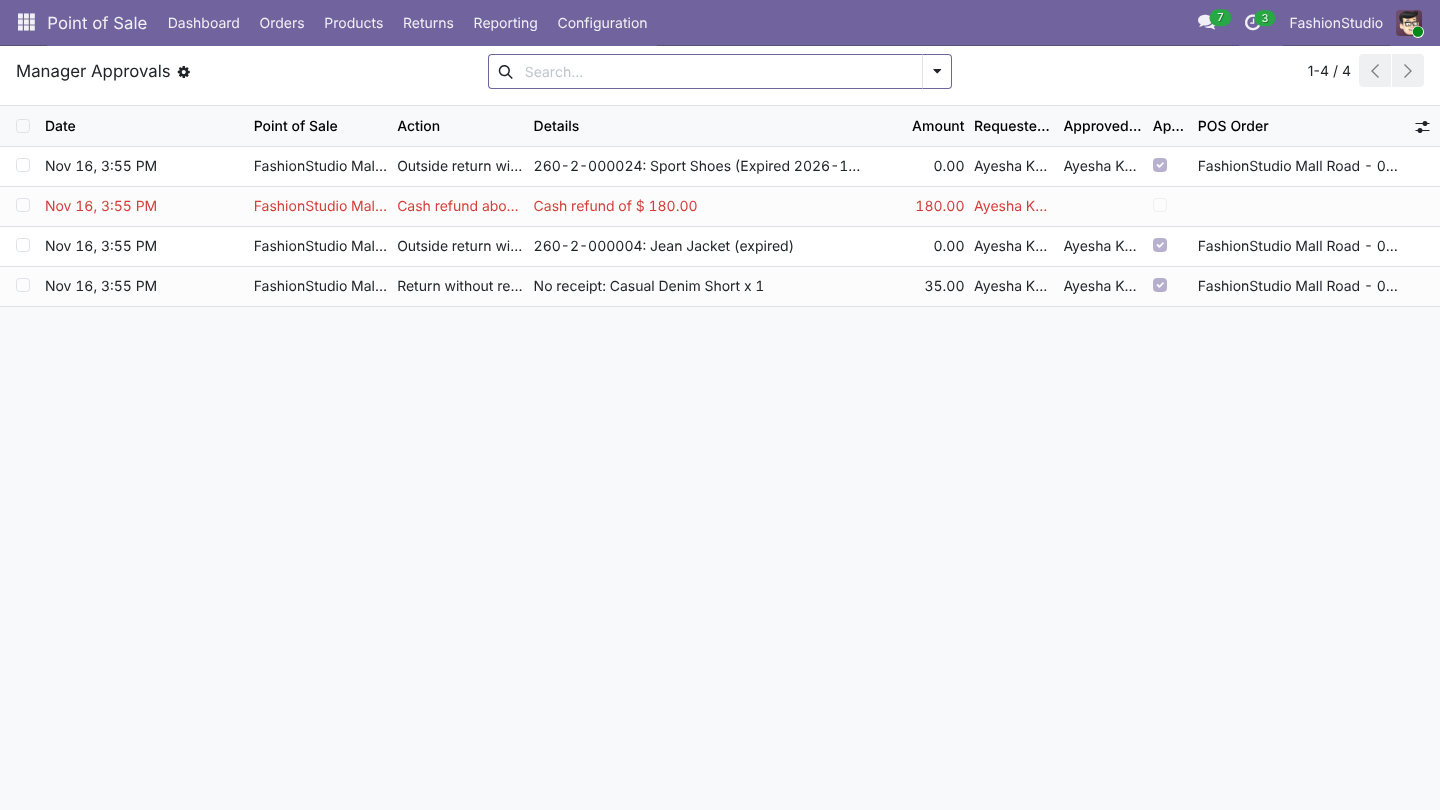
| Column | Meaning |
|---|---|
| Date | When the PIN was typed. |
| Point of Sale | Where. |
| Action | Outside return window, Not returnable item, Return without receipt, Cash refund above limit, or Refund method outside policy. |
| Details | The receipt and items, or the refund. |
| Amount | Value, for no-receipt returns and refunds. |
| Requested By / Approved By | The cashier and the manager. |
| Approved | Unticked for a wrong PIN. |
| POS Order | The order the approval was used in (set when the order is synced). |
Was this page helpful?