Find a receipt
Scan the barcode
Every receipt prints a barcode of its order number (the code starts with R). On the product screen, scan it with the barcode scanner: the return screen opens with that order. No need to click anything first.
Search
Click Return on the product screen (on small screens it is in the actions menu). Odoo's own Refund button on the Orders screen opens the same screen for the selected paid order.
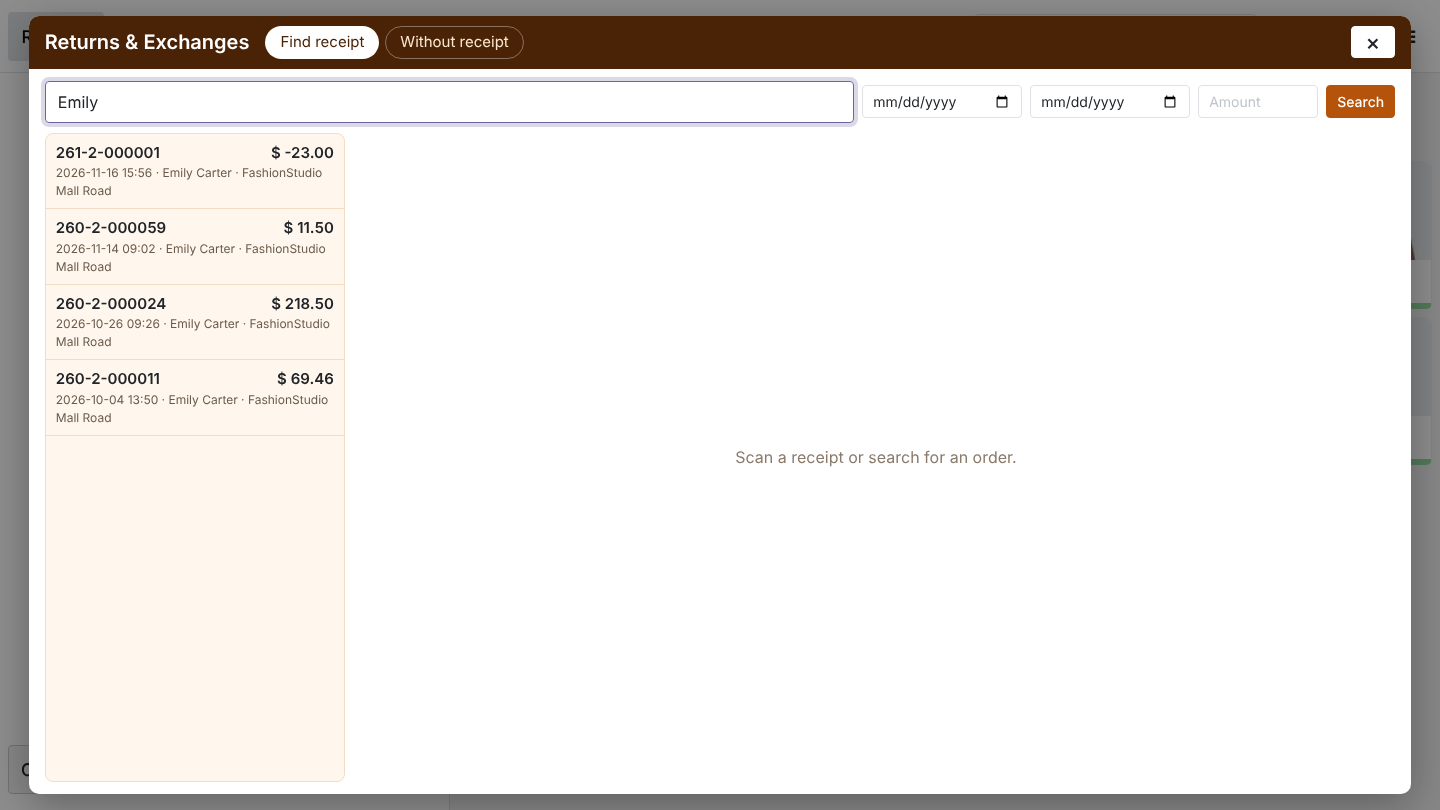
| Field | What it does |
|---|---|
| Search box | Receipt number (with or without the R), the order reference, customer name, phone number. Press Enter or click Search. |
| From / To dates | Limit the search to sales between two dates. |
| Amount | Find an order by its total. |
The list shows up to 30 paid orders, newest first, with date, customer, shop and total. Orders that have nothing left to return are greyed. When only one order matches, it opens directly.
Find receipts from in the settings decides which shops are searched: this POS, the whole company, or the company and its branches. Finding a receipt needs a connection to the server; old orders that the POS has not loaded are found too.
Next: Return and exchange.