Set up
Returns & Exchange Pro is set per Point of Sale. You need the Point of Sale / Administrator right.
- Go to Point of Sale → Configuration → Settings.
- At the top, choose the Point of Sale to set up.
- Scroll to the Returns & Exchanges section.
- Choose the options below and click Save.
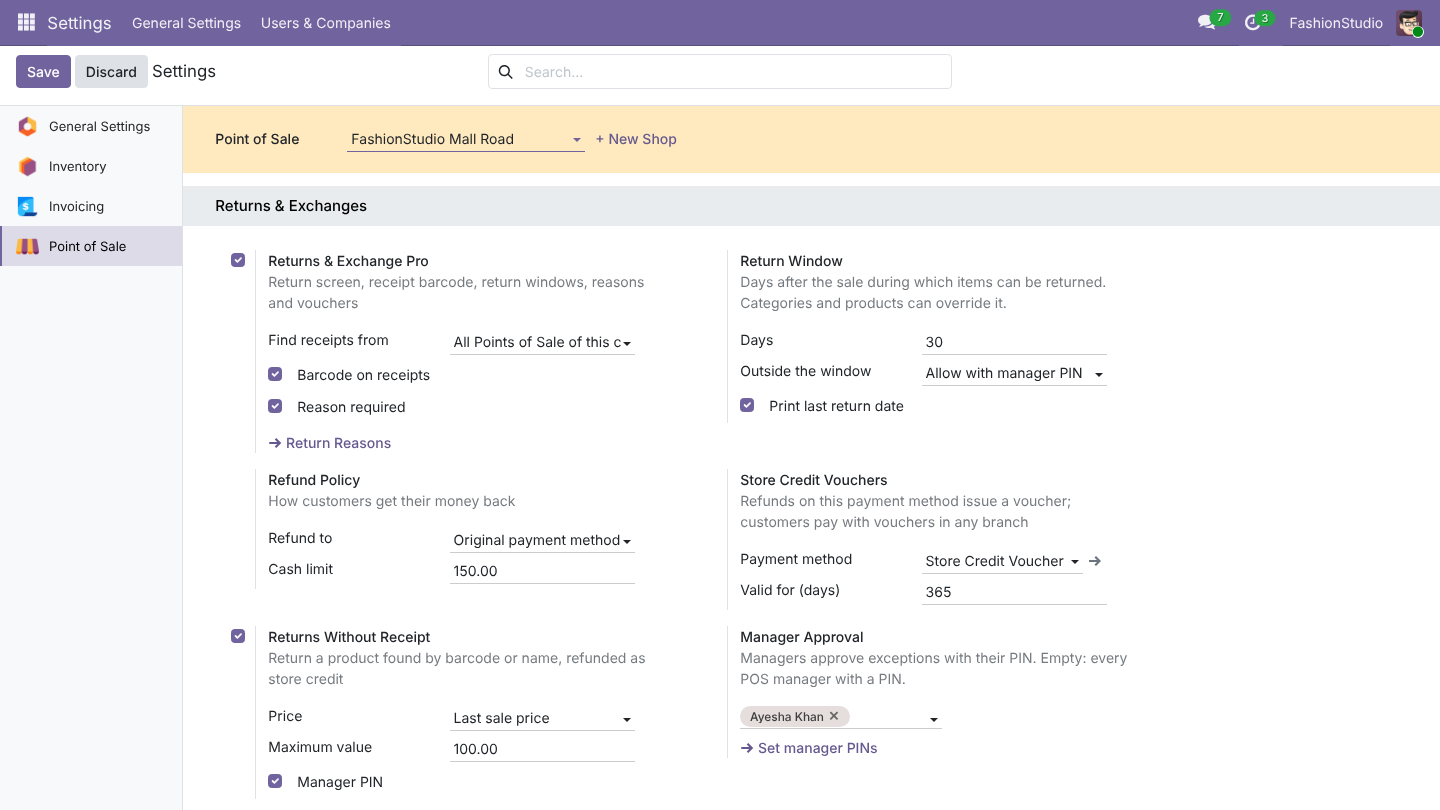
The app is on for every Point of Sale after installation, with a 30-day window, reasons required and any refund method allowed.
Returns & Exchange Pro
| Setting | What it does |
|---|---|
| Returns & Exchange Pro | Turns the app on for this Point of Sale: the Return button, the receipt barcode and the checks at payment. |
| Find receipts from | Where the return screen looks for orders. This Point of Sale only, All Points of Sale of this company (default), or All Points of Sale of this company and its branches (child companies). |
| Barcode on receipts | Prints a barcode of the order number at the bottom of every receipt. On by default. |
| Reason required | The cashier must pick a reason for every returned item. On by default. |
| Return Reasons | Opens the list of reasons: see Return reasons. |
Return Window
| Setting | What it does |
|---|---|
| Days | Number of days after the sale during which items can be returned. 0 means no limit. Product categories and products can override it: see Return windows. |
| Outside the window | Allow with manager PIN (default): items that are expired or not returnable can be returned when a manager types their PIN. Block: they cannot be returned at all. |
| Print last return date | Prints "Returns accepted until ..." on receipts, plus a line for each product with its own window or that is not returnable. On by default. |
Refund Policy
| Setting | What it does |
|---|---|
| Refund to | Any payment method (default). Original payment method or store credit: the refund must go to a payment method the original order was paid with, or to a store credit voucher. Store credit voucher only: every refund becomes a voucher. Anything else asks for a manager PIN. |
| Cash limit | Cash refunds above this amount ask for a manager PIN. 0 means no limit. |
Reasons can also allow store credit only, whatever this setting says. Returns without receipt are always refunded as store credit.
Store Credit Vouchers
| Setting | What it does |
|---|---|
| Payment method | The payment method that issues and accepts vouchers. A refund on it issues a voucher; a payment with it uses one. |
| Valid for (days) | How long a new voucher can be used. 0 means it never expires. Default 365. |
| Create the voucher payment method | Shown when no method is set. Creates a Store Credit Vouchers journal, a Store Credit Vouchers liability account and a Store Credit Voucher payment method, and adds it to this Point of Sale. The installation does this for companies that already have a chart of accounts. |
The payment method has a Store Credit Voucher box (Point of Sale → Configuration → Payment Methods). It must use a journal and cannot be a cash method.
Accounting: the voucher payment method posts to the Store Credit Vouchers liability account when the session is closed, like any other payment method. Issuing a voucher credits the account, paying with a voucher debits it, so its balance is the store credit your customers still hold.
Returns Without Receipt
| Setting | What it does |
|---|---|
| Returns Without Receipt | Adds the Without receipt tab to the return screen. Off by default. See Returns without receipt. |
| Price | Last sale price (default): the price of the last sale of the product, to this customer if there was one. Current price: the product's sales price. |
| Maximum value | Highest value of one return without receipt. 0 means no maximum. |
| Manager PIN | Each return without receipt needs a manager PIN. On by default. |
Manager Approval
| Setting | What it does |
|---|---|
| Return Approvers | Managers whose PIN approves exceptions on this Point of Sale. Empty: every Point of Sale administrator of the company who has a PIN. |
| Set manager PINs | Opens the list of users to set PINs: see Manager PINs. |
Damaged Location
| Setting | What it does |
|---|---|
| Damaged Location | Where items returned with a "damaged" reason are moved, unless the reason has its own location. The installation creates a Damaged location in each warehouse and sets it. |
The POS reads these settings when it starts. After a change, reload the POS (the session can stay open).