Return windows
The return window decides until when an item can be returned. The app looks for it in this order:
- The product (its POS Return Policy),
- its product category, then the parent categories,
- the Days of the Point of Sale where the item is returned.
The window counts from the date of the original sale.
On a product category
Go to Inventory → Configuration → Product Categories and open a category. In POS Returns:
| Field | What it does |
|---|---|
| POS Return Policy | Same as parent category / POS (default), Custom return window, or Not returnable. |
| Return Window (days) | Shown with Custom return window. For example 14 days for footwear. |
Child categories follow their parent unless they have their own policy.
On a product
Open the product, tab Point of Sale:
| Field | What it does |
|---|---|
| POS Return Policy | Same as product category (default), Custom return window, or Not returnable (final sale items, underwear, gift cards...). |
| Return Window (days) | Shown with Custom return window. |
A window of 0 days on a category or product means not returnable.
In the POS and on receipts
The return screen shows a status for each line: Until date (green), Expired date (red), Not returnable, or Already returned. Expired and not returnable lines need a manager PIN, or are refused when Outside the window is Block (Set up).
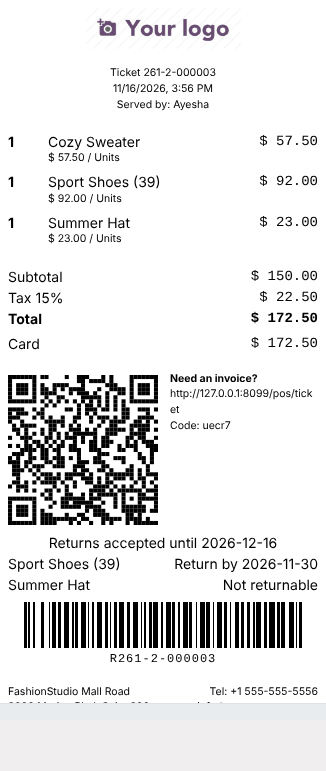
When Print last return date is on, receipts print "Returns accepted until" with the date of the POS window, and one line for each product with its own date or "Not returnable".
The POS loads the product windows when it starts. After changing a policy, reload the POS.